Blog6 min read
How to Use an Online Teleprompter for YouTube Videos
A practical workflow for reading a YouTube script from a free online teleprompter: script prep, screen placement, speed, takes, and reusing the script for captions.
- Teleprompter
- YouTube Scripts
- Video Production
- YouTube Creators
A teleprompter lets you look at the camera and still say exactly what you planned. It only helps if the script is easy to say, the text sits near the lens, and the speed matches how you talk. After you upload, the same script can become your captions and chapters.
Start With a Script Written for the Ear
A teleprompter reads back exactly what you give it. If the script is written like an essay, you will sound like you are reading an essay.
Write short sentences, one idea each. Use contractions. Read the draft out loud once before you record and rewrite any line you stumble on, because you will stumble on it again with the camera running.
If you are starting from a blank page, the YouTube Script Generator writes a word-for-word script from your topic. You pick a video length (from 3-5 minutes up to 12-20 minutes), the number of main points, and a tone such as "Calm & educational" or "Direct & no-fluff." The script includes a retention hook, a body built on a Point-Explain-Illustrate-Lesson structure, a mid-video call to action, and visual direction notes. It needs a Google sign-in and uses credits; see pricing for how credits work.
Treat the generated script as a first draft. Read it aloud and change anything that doesn't sound like you.
Write the First 30 Seconds Last
YouTube's audience retention report includes an Intro figure: the percentage of your audience still watching after the first 30 seconds. YouTube's own suggestion for improving it is to make sure the opening matches what the title and thumbnail promised, and to experiment with how you open.
That makes the first 30 seconds of your script the part worth the most rewrites. Once the body is done, go back and make the opening say plainly what the viewer will get. If you haven't settled on a title yet, the YouTube Title Generator can give you options to check the opening against.
Paste the Script Into the Teleprompter
The Repurpose AI Online Teleprompter is free. You paste a script and use every control without signing in, spending credits, or creating an account.
It runs in your browser. The script isn't sent to an API or saved, and closing the page clears it from the tool. That's useful when the script mentions something you'd rather not upload anywhere yet, like an unannounced product.
Paste the script, select "Launch teleprompter," and you get a reading view with these controls:
- Play and pause
- Restart from the beginning
- Scrolling speed
- Text size
- Mirror, for reading through teleprompter glass
The editor and the fullscreen reading view are responsive, so you can prepare and read on a desktop, tablet, or phone.
The teleprompter does not record video. You record with your usual camera, webcam app, or screen recorder and keep the teleprompter open alongside it.
Put the Words Next to the Lens
Viewers notice reading when your eyes move away from the lens. The closer the text sits to the camera, the less your eyes travel.
If you record with a laptop or monitor webcam, the camera usually sits at the top center of the screen. Make the browser window narrow and put it directly under the camera, so the line you're reading is as close to the lens as you can get it.
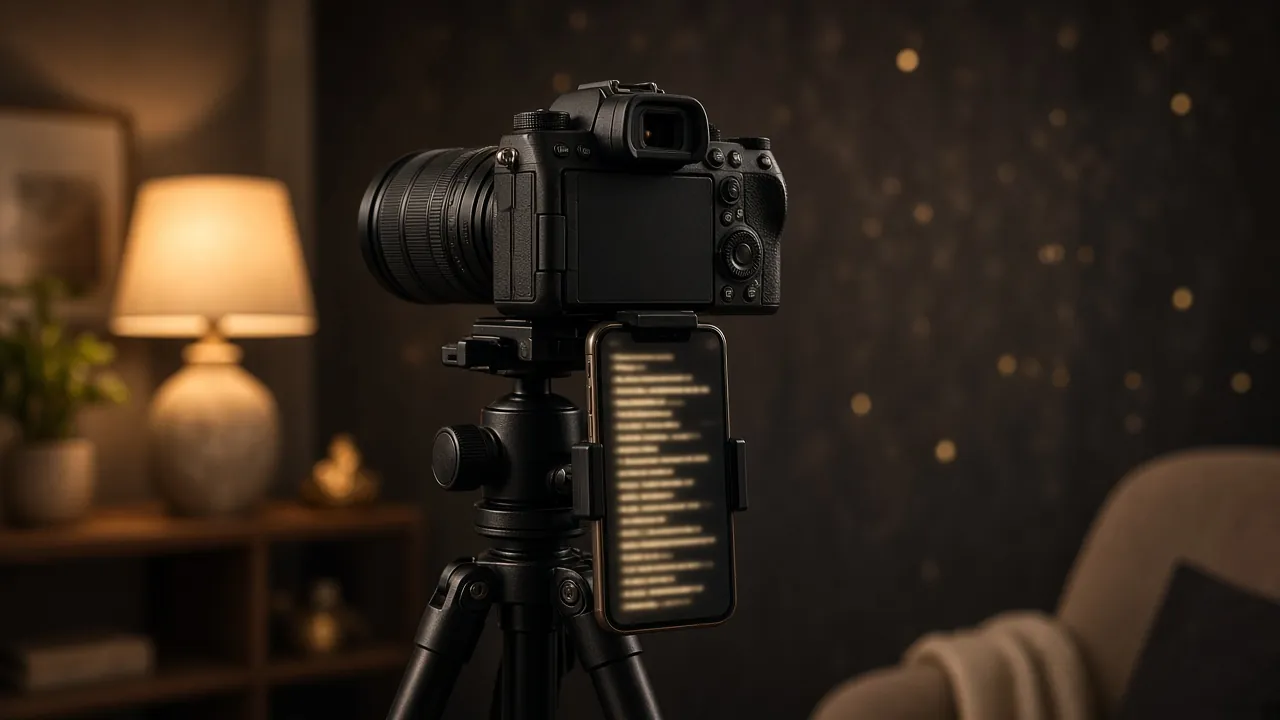
If you record with a separate camera, open the teleprompter on a phone or tablet and put it just under or beside the lens, as close as it can go without entering the shot.
If you own a beam-splitter rig, the kind that reflects a screen onto glass in front of the lens, turn on mirror so the text reads the right way round.
Sitting a little further back helps too, because your eye movements look smaller on camera from a distance.
Set Size and Speed in a Rehearsal Take
Raise the text size until you can read it comfortably from where you actually sit. Larger text means fewer words per line, which also cuts down side-to-side eye movement.
There is no correct speed. It depends on how fast you talk, the text size, and the window width. Start slower than feels right, do one full run-through without recording, and adjust. You can change speed while reading, so a take that starts too fast doesn't have to be thrown away.
Record One Section at a Time
You don't have to read a ten-minute script in one go. Record the hook, then each main point, then the call to action, as separate takes. Pause the teleprompter between sections, and use restart when you want a clean run from the top.
Separate takes give you clean cut points in the edit, and you can redo one section without redoing the whole video.
Reuse the Script for Captions
After you upload, your script is most of a caption track already.
In YouTube Studio, Add subtitles & captions offers an Auto-sync option: you enter the words spoken in the video or upload a transcript file, and YouTube synchronizes the text to your video. YouTube notes that the transcript must be in the same language spoken in the video and in a language its speech recognition supports, and that transcripts are not recommended for videos over an hour long or with poor audio quality. Setting the timings can take a few minutes, and the captions are published automatically when ready.
Before you paste, edit the script to match what you actually said on camera. Ad-libs and cut lines will otherwise end up in the captions. YouTube's tips for creating a transcript file suggest a plain .txt file, a blank line to force a new caption, square brackets for sounds like [music], and >> to mark a change of speaker.
Turn Script Sections Into Chapters
If you recorded in sections, the section headings in your script are a ready-made chapter list. YouTube's Video Chapters help page says to add timestamps and titles in the description, starting with 00:00, with at least three timestamps in ascending order, and each chapter at least 10 seconds long.
How to Add YouTube Chapters With Timestamps (Official Rules) covers the rest of the process.
After You Publish
The script is useful after the video goes live too. YouTube Transcript vs Summary: Which One Do You Need? explains when you want the full text and when a summary is better. To turn the finished video into posts and clips, see How to Turn One YouTube Video Into a Blog Post and Which YouTube Clip Format to Use: 9:16, 1:1, or 16:9.
Before Your Next Recording
Read the script aloud once, rewrite the lines you trip on, and do one rehearsal take at a slow speed. If you still sound like you're reading, the fix is usually in the script, not the scroll speed.